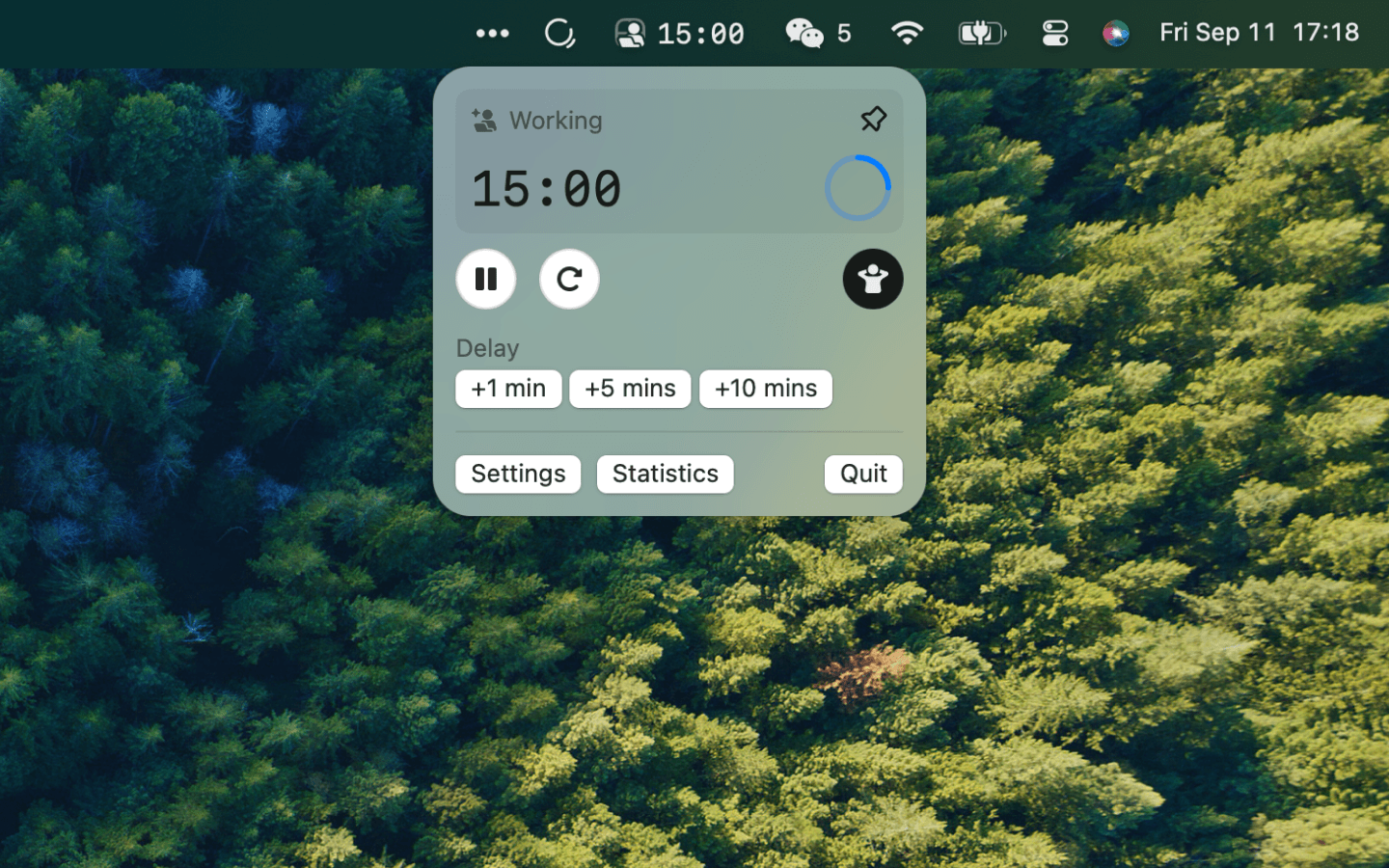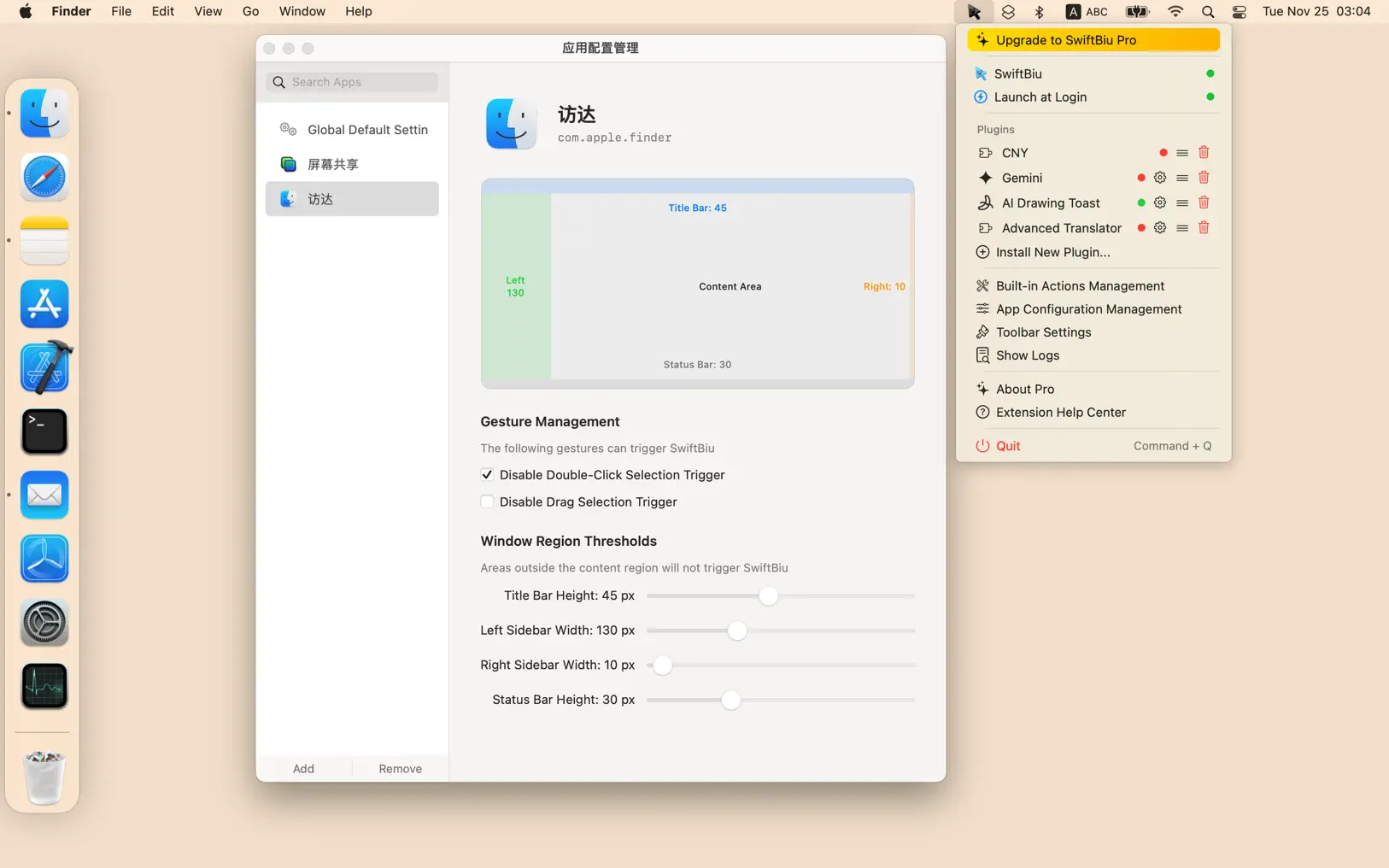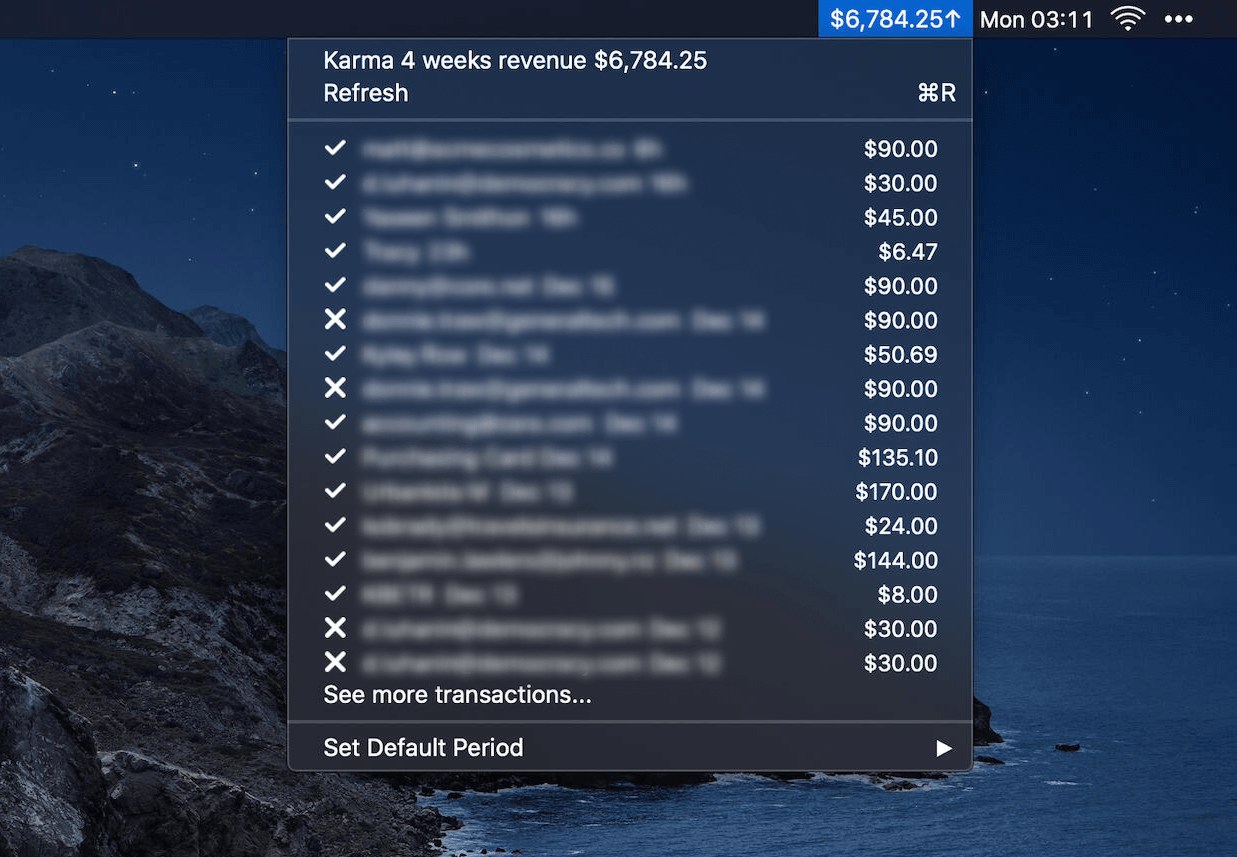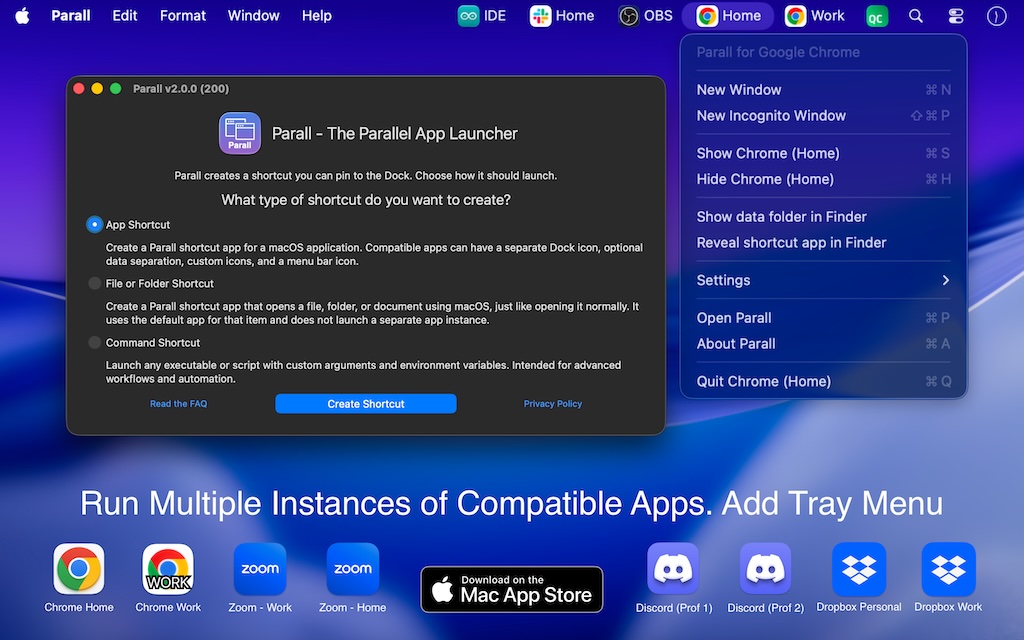
A macOS menu bar app that replaces the Wi-Fi icon with customizable status indicators.
Why Online Indicator?
The macOS WiFi icon only shows that you are connected to a router, not whether your internet is actually working or being blocked. Online Indicator replaces it with a live status icon that verifies real internet connectivity at the network level, so you can instantly see if you are online, offline, or blocked without opening any apps, giving you a smarter and slightly geekier way to understand your connection at a glance.
Features
🛜 Ditch the boring Wi-Fi icon
Your menu bar deserves better than a grey Wi-Fi symbol that tells you nothing. Online Indicator replaces it with a live status icon that actually means something:
- Green when you're online
- Yellow when something's off
- Red when there's no network
🎨 Make it yours
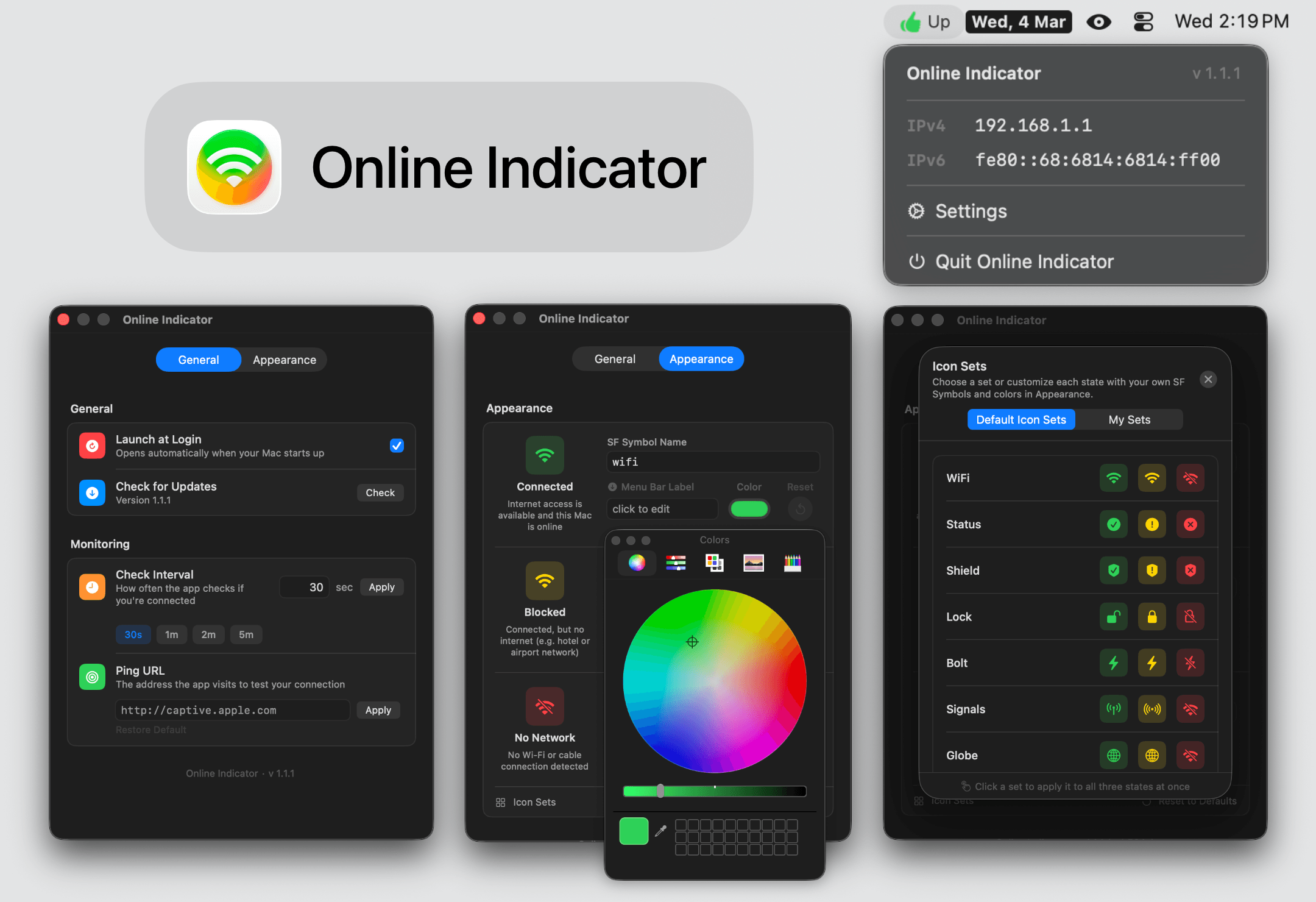
Choose from 17 ready made Icon Sets or use any SF Symbol, set custom colors and labels for each state, and save your setup as your own Icon Set to switch anytime with a single tap.
📡 Flexible monitoring
Choose any URL to ping and set how often the check runs, from every 30 seconds to once an hour.
👀 Quick IP peek
Your IPv4 and IPv6 are always one click away in the menu, tap to copy instantly.
Download & Install
1 · Download
Head to the Latest Release page and grab the latest .dmg file.
2 · Install
Open the .dmg and drag Online Indicator into your Applications folder. Done.
3 · First Launch
Option A — System Settings
- Go to System Settings → Privacy & Security
- Scroll down until you see Online Indicator listed as blocked
- Click Open Anyway and enter your password
Option B — Terminal
Paste this into Terminal and press Enter:
xattr -dr com.apple.quarantine /Applications/Online\ Indicator.app
Then open the app normally.
💡 Why does this happen? Apple requires a $99/year developer certificate to "notarise" apps. Online Indicator is free and independent, so it skips that. The warning is Apple's way of flagging uncertified apps, not a sign that anything is wrong.
Privacy Policy
Online Indicator collects no data. Period.
- No analytics, crash reporting or usage tracking
- No personal information collected or transmitted
- All preferences are stored locally on your Mac
The only outbound network request the app makes is the connectivity probe, a simple HTTP request to captive.apple.com (or your custom URL) to check if the internet is reachable. This is identical to what macOS itself does internally.