Quotio is a native macOS application for managing CLIProxyAPI - a local proxy server that powers your AI coding agents. It helps you manage multiple AI accounts, track quotas, and configure CLI tools in one place.
✨ Features
- 🔌 Multi-Provider Support: Connect accounts from Gemini, Claude, OpenAI Codex, Qwen, Vertex AI, iFlow, Antigravity, Kiro, Trae, and GitHub Copilot via OAuth or API keys.
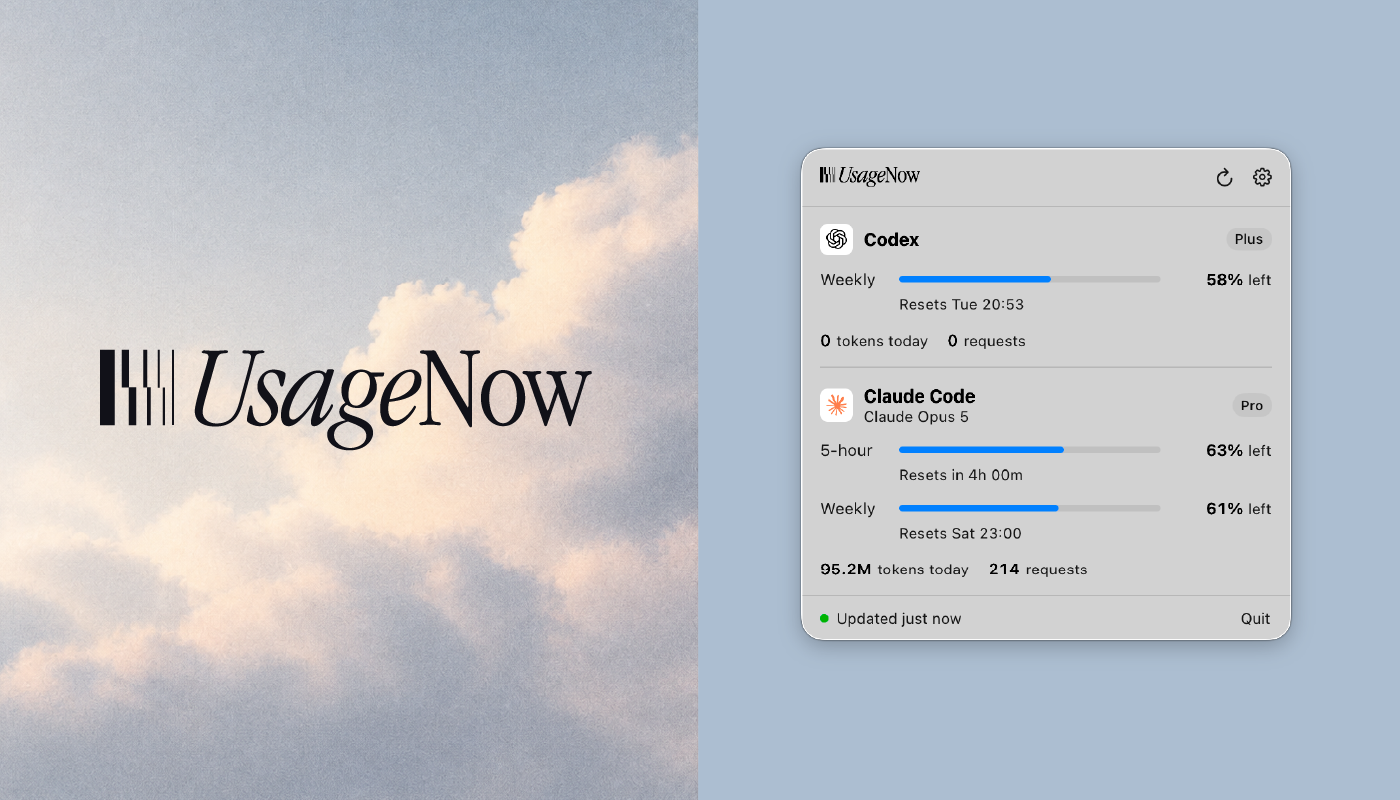
- 📊 Standalone Quota Mode: View quota and accounts without running the proxy server - perfect for quick checks.
- 🚀 One-Click Agent Configuration: Auto-detect and configure AI coding tools like Claude Code, OpenCode, Gemini CLI, and more.
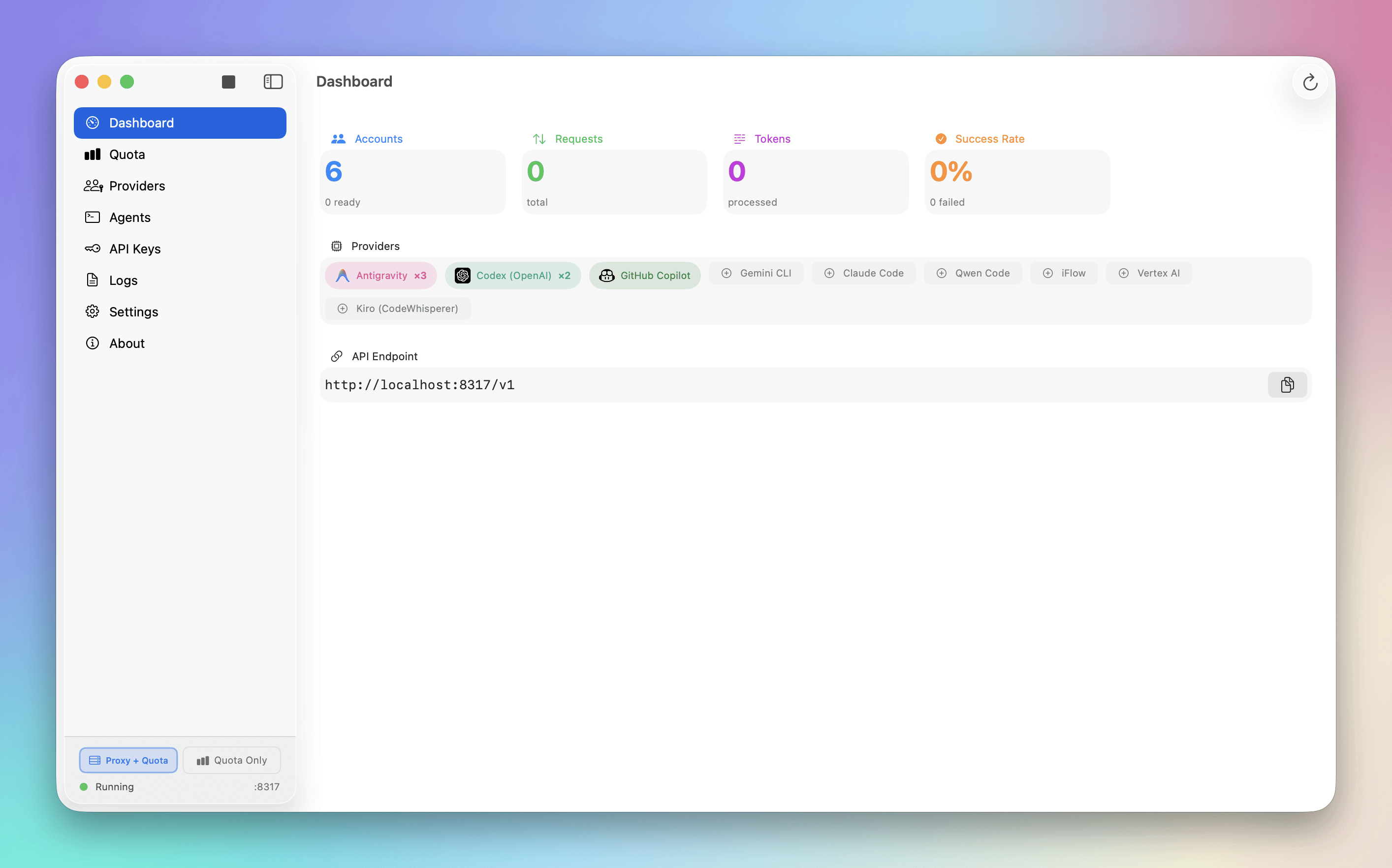
- 📈 Real-time Dashboard: Monitor request traffic, token usage, and success rates live.
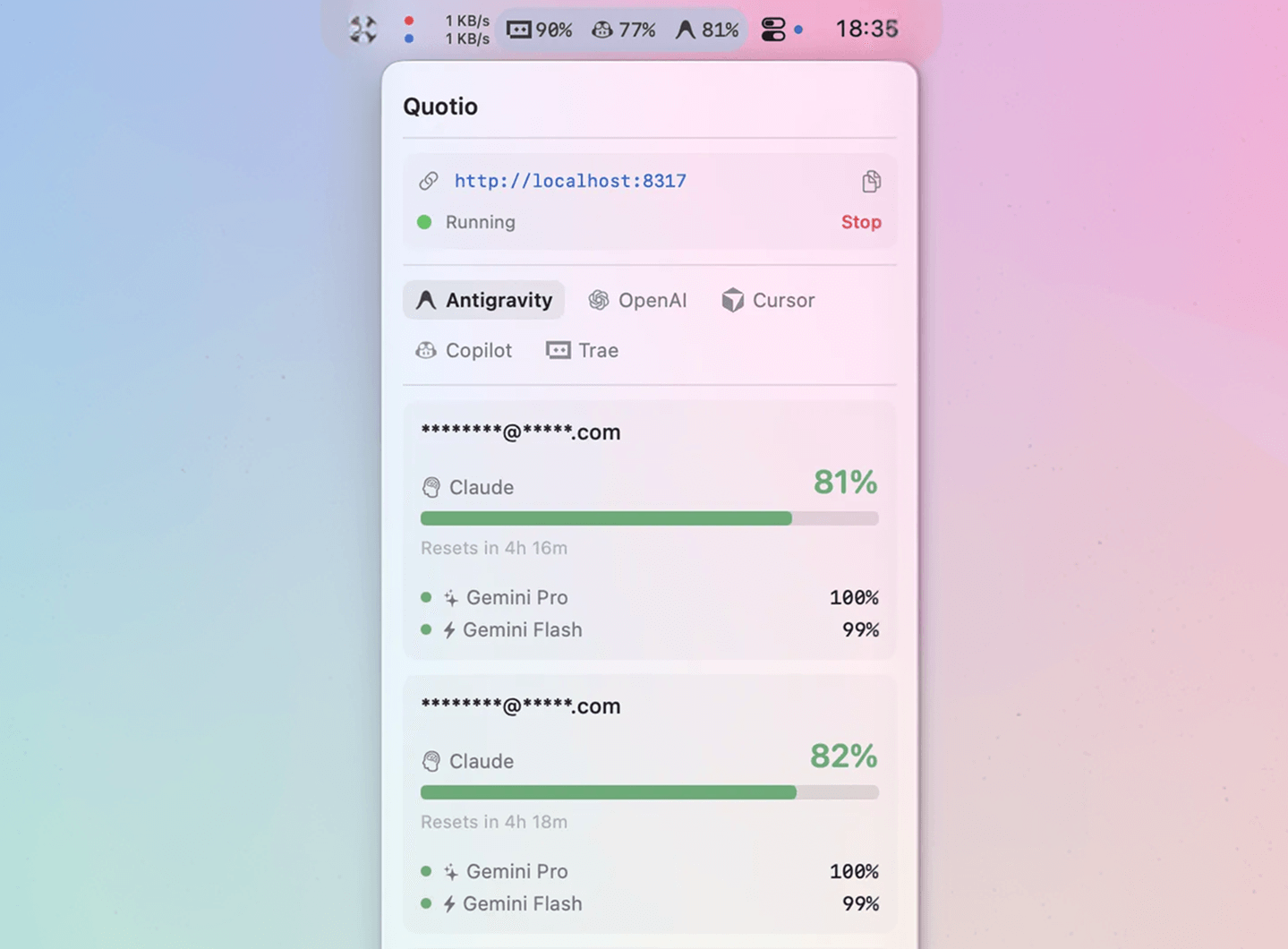
- 📉 Smart Quota Management: Visual quota tracking per account with automatic failover strategies (Round Robin / Fill First).
- 🔑 API Key Management: Generate and manage API keys for your local proxy.
- 🖥️ Menu Bar Integration: Quick access to server status, quota overview, and custom provider icons from your menu bar.
- 🔔 Notifications: Alerts for low quotas, account cooling periods, or service issues.
- 🔄 Auto-Update: Built-in Sparkle updater for seamless updates.
- 🌍 Bilingual: English and Vietnamese support.
🤖 Supported Ecosystem
AI Providers
| Provider | Auth Method |
|---|---|
| Google Gemini | OAuth |
| Anthropic Claude | OAuth |
| OpenAI Codex | OAuth |
| Qwen Code | OAuth |
| Vertex AI | Service Account JSON |
| iFlow | OAuth |
| Antigravity | OAuth |
| Kiro | OAuth |
| GitHub Copilot | OAuth |
IDE Quota Tracking (Monitor Only)
| IDE | Description |
|---|---|
| Cursor | Auto-detected when installed and logged in |
| Trae | Auto-detected when installed and logged in |
Note: These IDEs are only used for quota usage monitoring. They cannot be used as providers for the proxy.
Compatible CLI Agents
Quotio can automatically configure these tools to use your centralized proxy:
- Claude Code
- Codex CLI
- Gemini CLI
- Amp CLI
- OpenCode
- Factory Droid
📖 Usage
1. Start the Server
Launch Quotio and click Start on the dashboard to initialize the local proxy server.
2. Connect Accounts
Go to Providers tab → Click on a provider → Authenticate via OAuth or import credentials.
3. Configure Agents
Go to Agents tab → Select an installed agent → Click Configure → Choose Automatic or Manual mode.
4. Monitor Usage
- Dashboard: Overall health and traffic
- Quota: Per-account usage breakdown
- Logs: Raw request/response logs for debugging
⚙️ Settings
- Port: Change the proxy listening port
- Routing Strategy: Round Robin or Fill First
- Auto-start: Launch proxy automatically when Quotio opens
- Notifications: Toggle alerts for various events