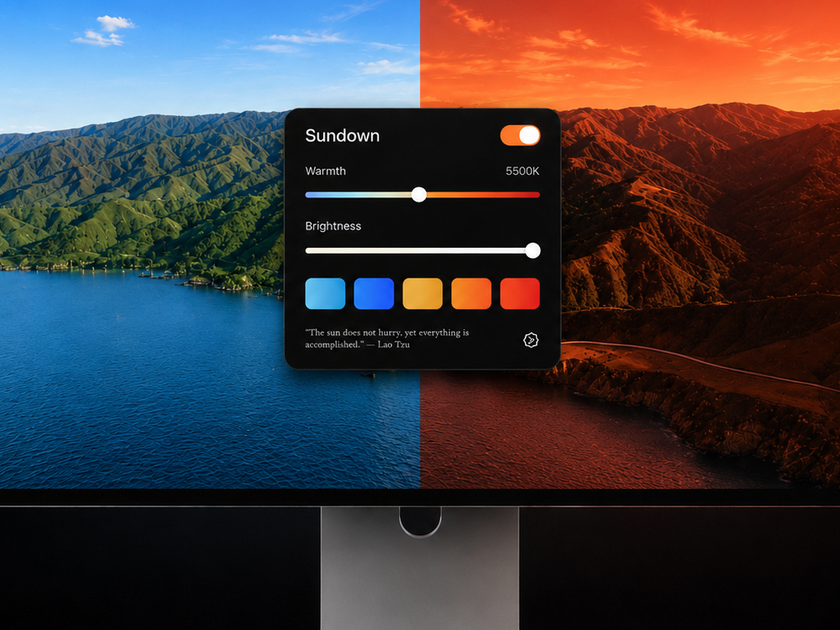
Sundown
A menu bar panel that warms and dims your Mac's display, by hand or on a schedule.
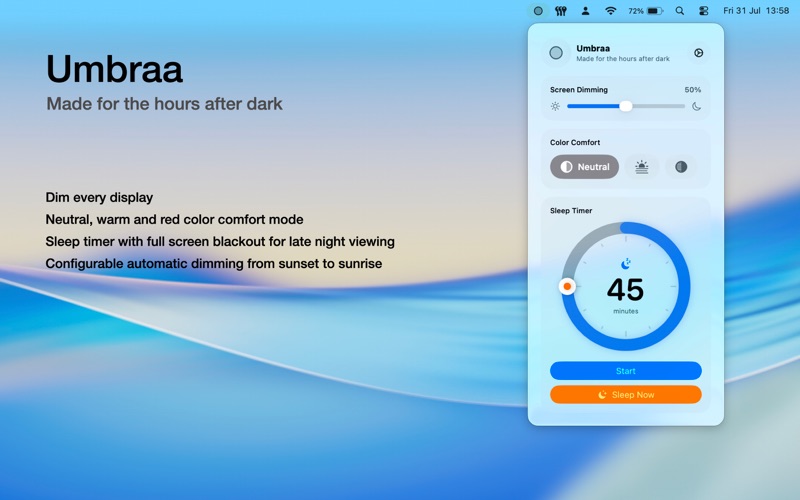
Umbraa
Screen dimmer that lives in your menu bar for comfortable nighttime Mac use
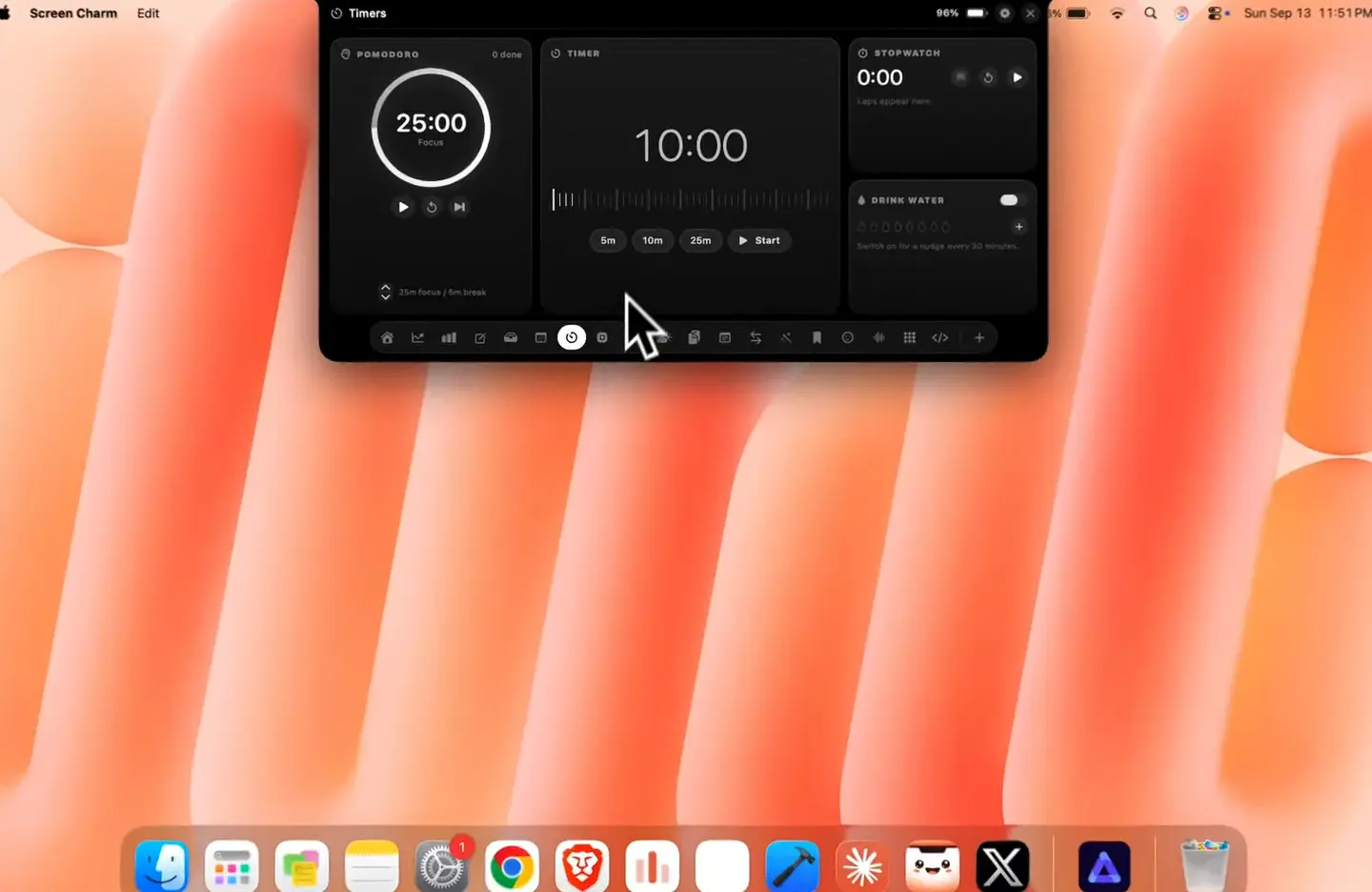

Notch Buddy
Revenue, timers, clipboard, stats and 15 more tools for your MacBook's notch.
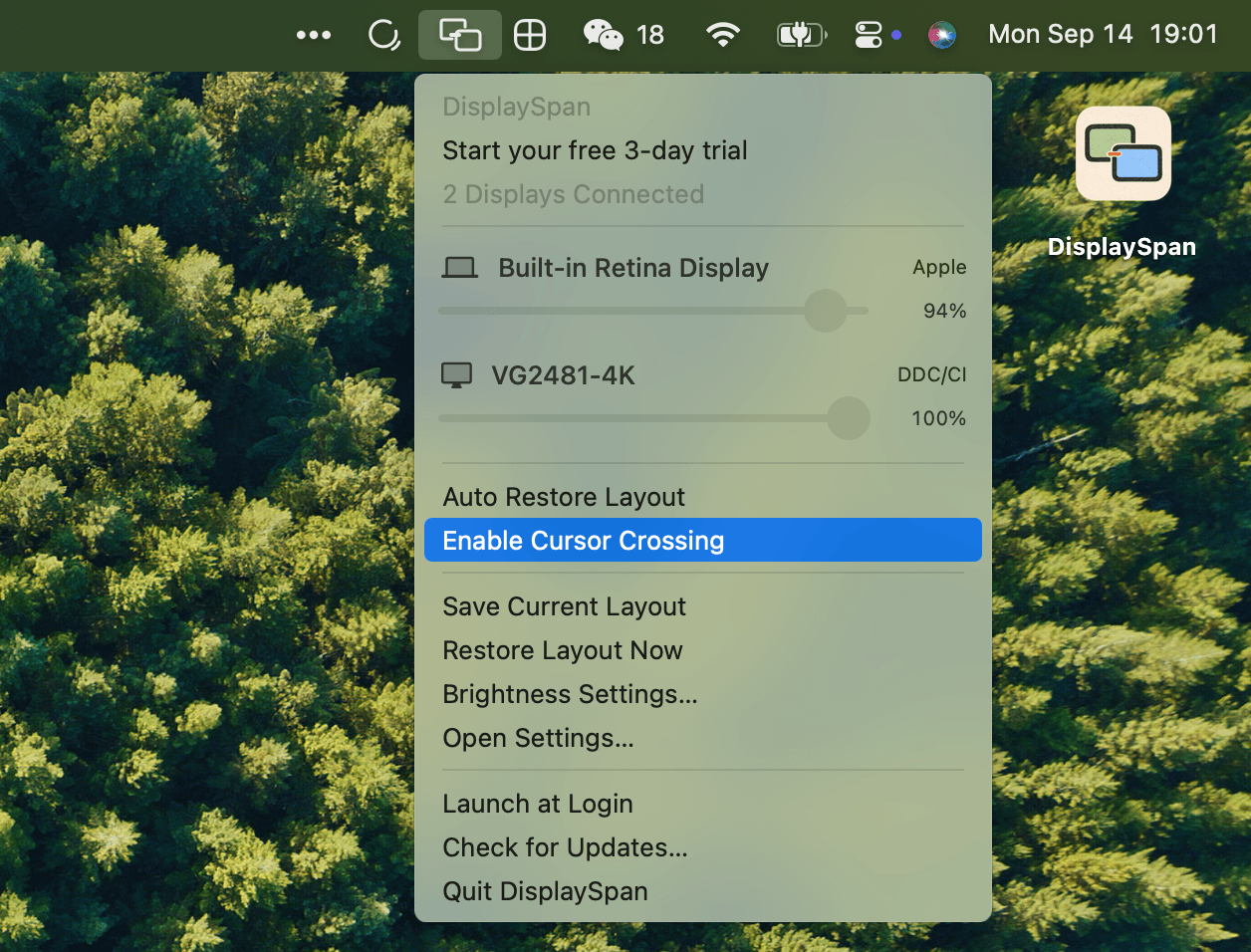
DisplaySpan
A small menu bar app that fixes the everyday friction in a multi-monitor Mac setup.
Lid Plane
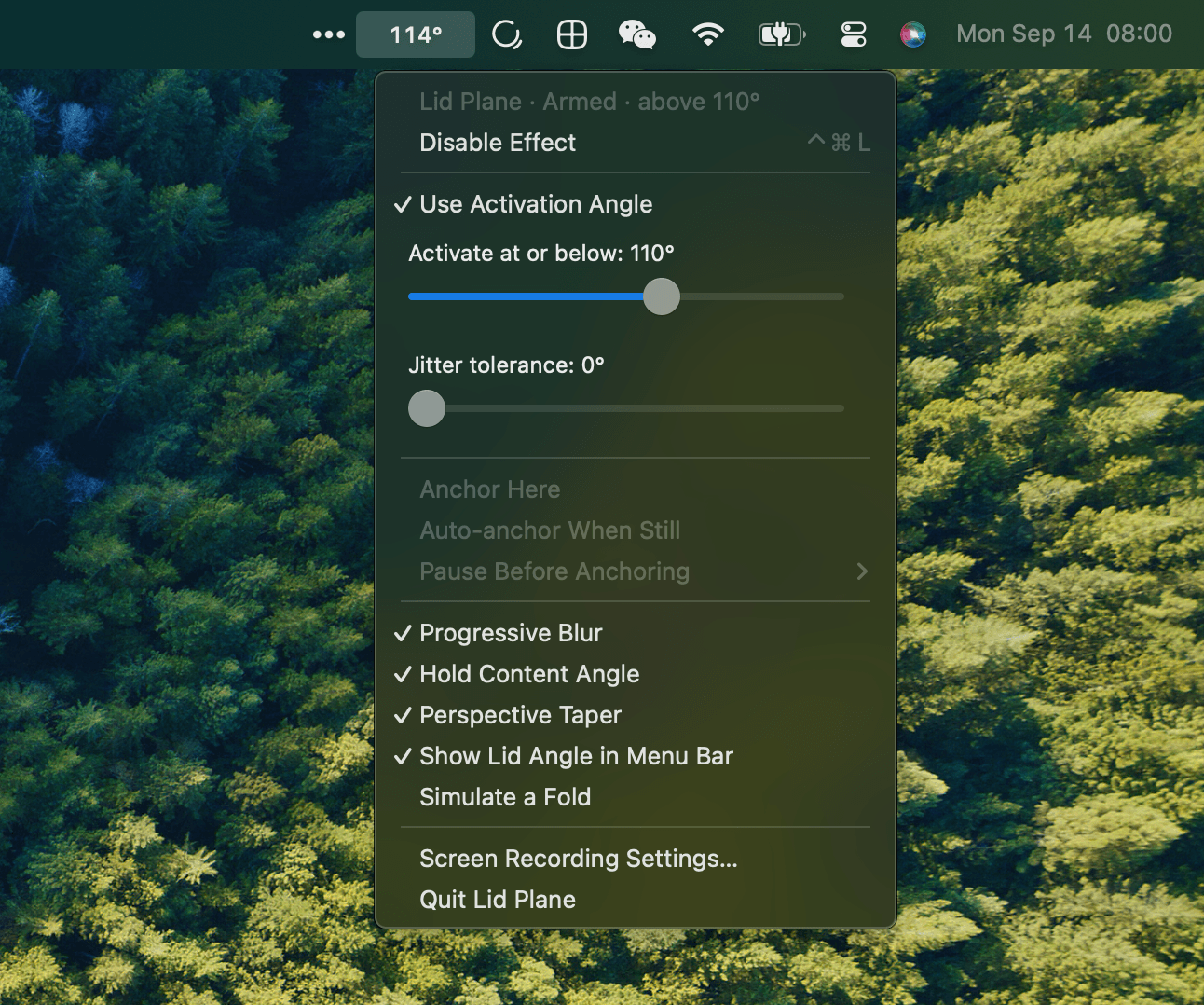
A tiny menu bar app that holds your desktop at an apparent fixed angle and progressively blurs it as you close the lid below 110°.
MacQ
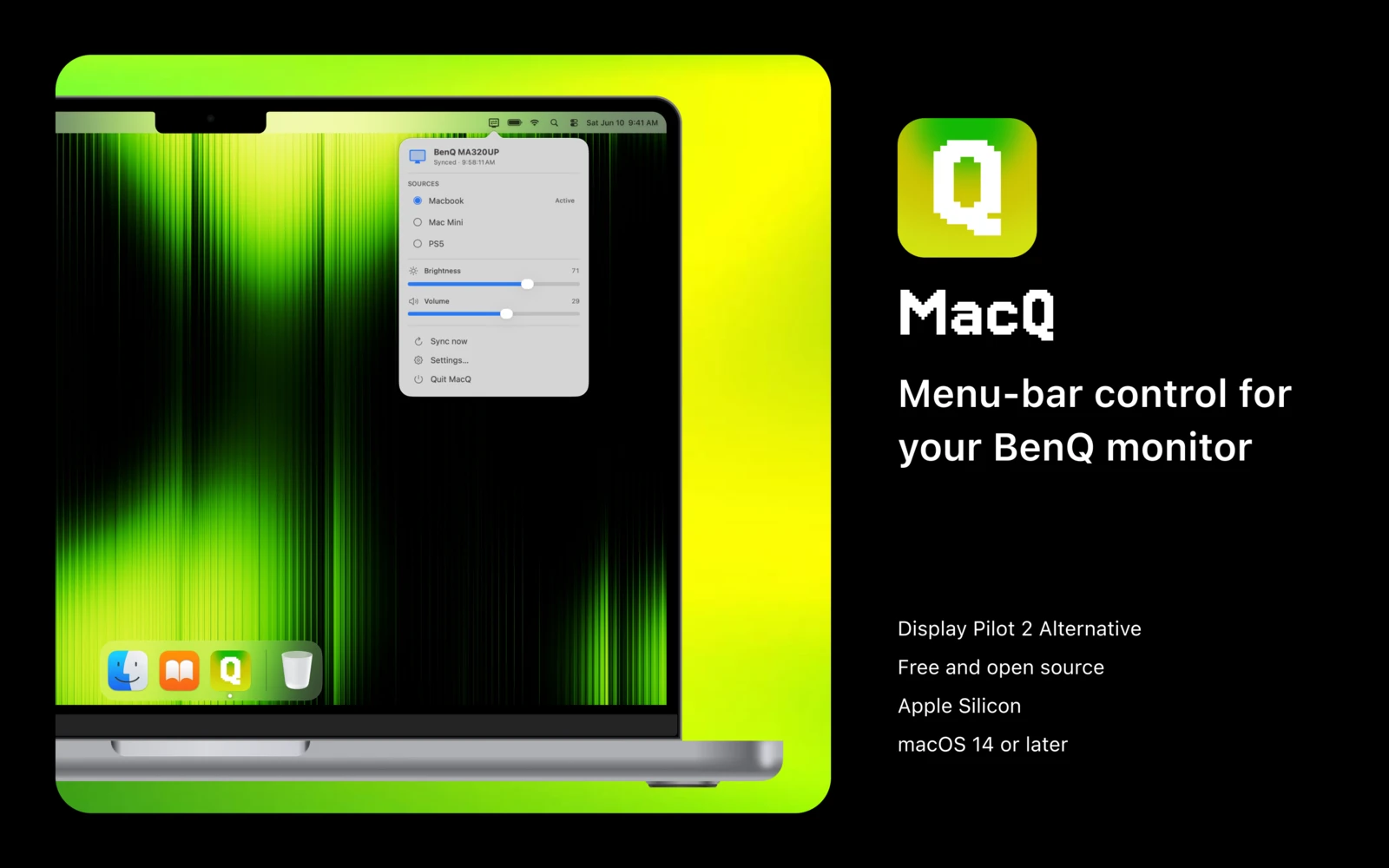
Fast and lightweight menu-bar control for your BenQ monitor
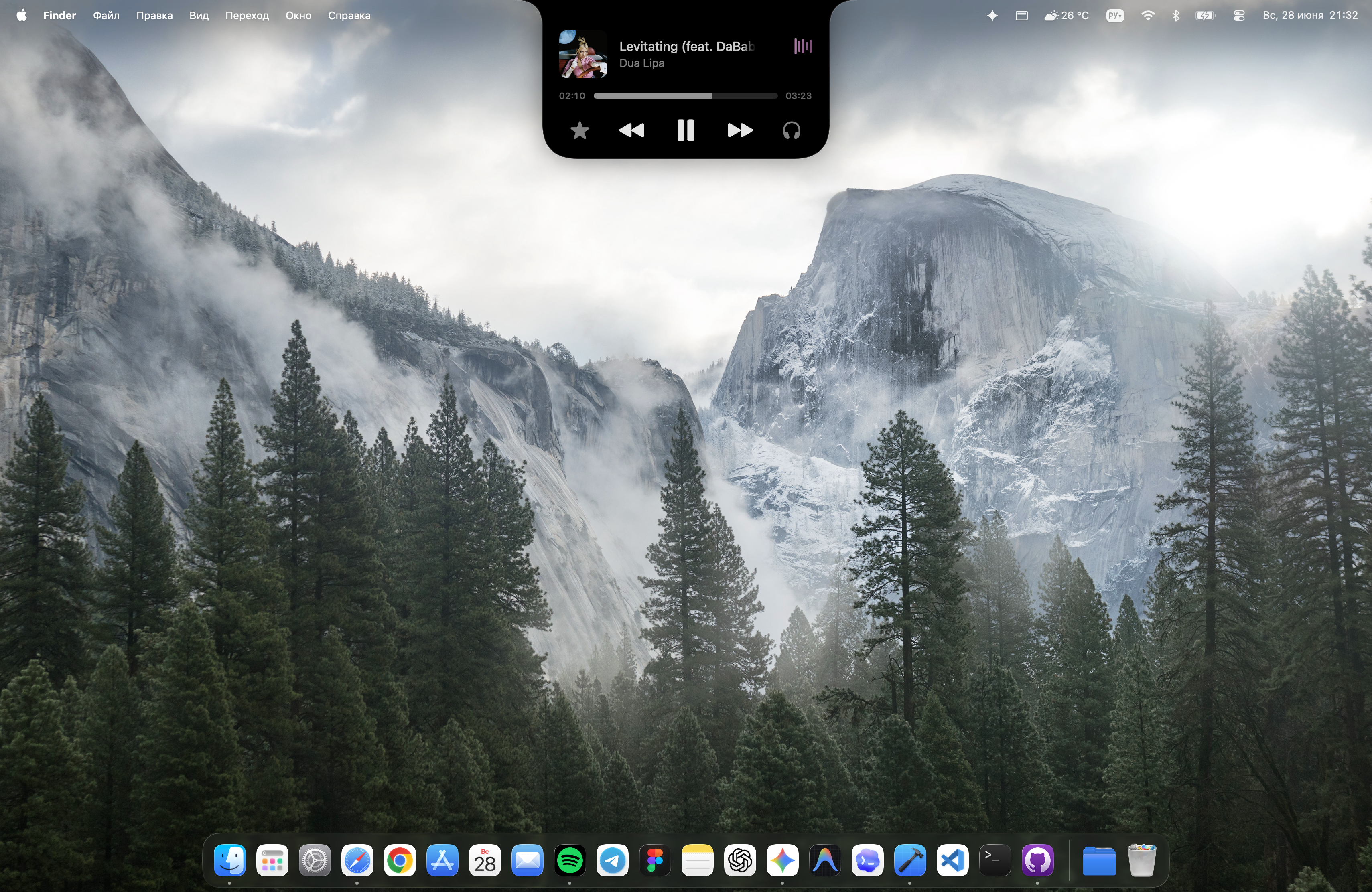
DynamicNotch
Turn the MacBook notch into a living native surface with live activities, system HUDs, and Dynamic Island-style animations.
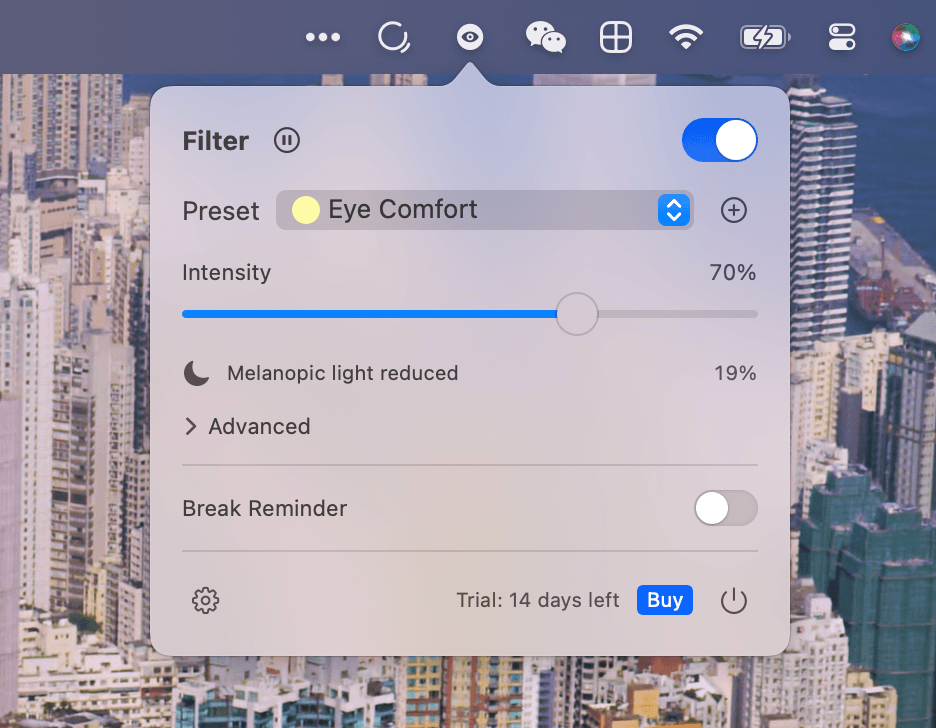
Nox
Research-based spectral screen filter for light-sensitive eyes on macOS

Vorssaint
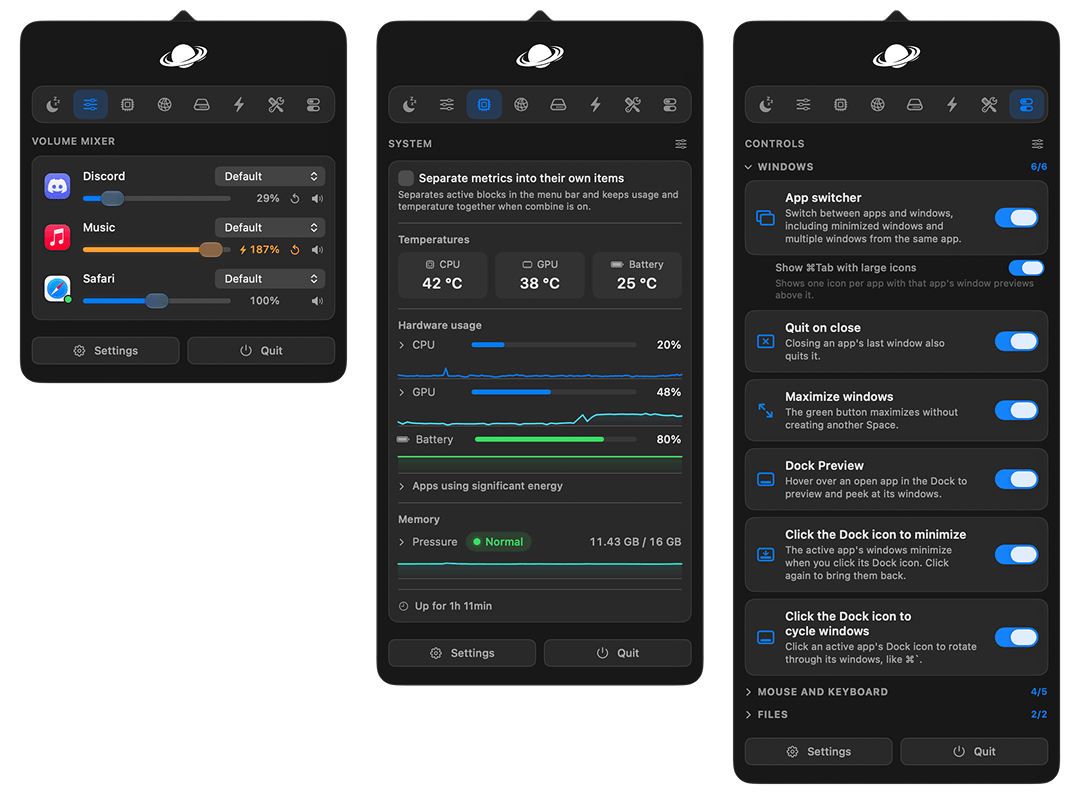
One menu bar icon doing the job of a dozen paid Mac apps. Free, open source, and everything runs on your Mac.
Crisp
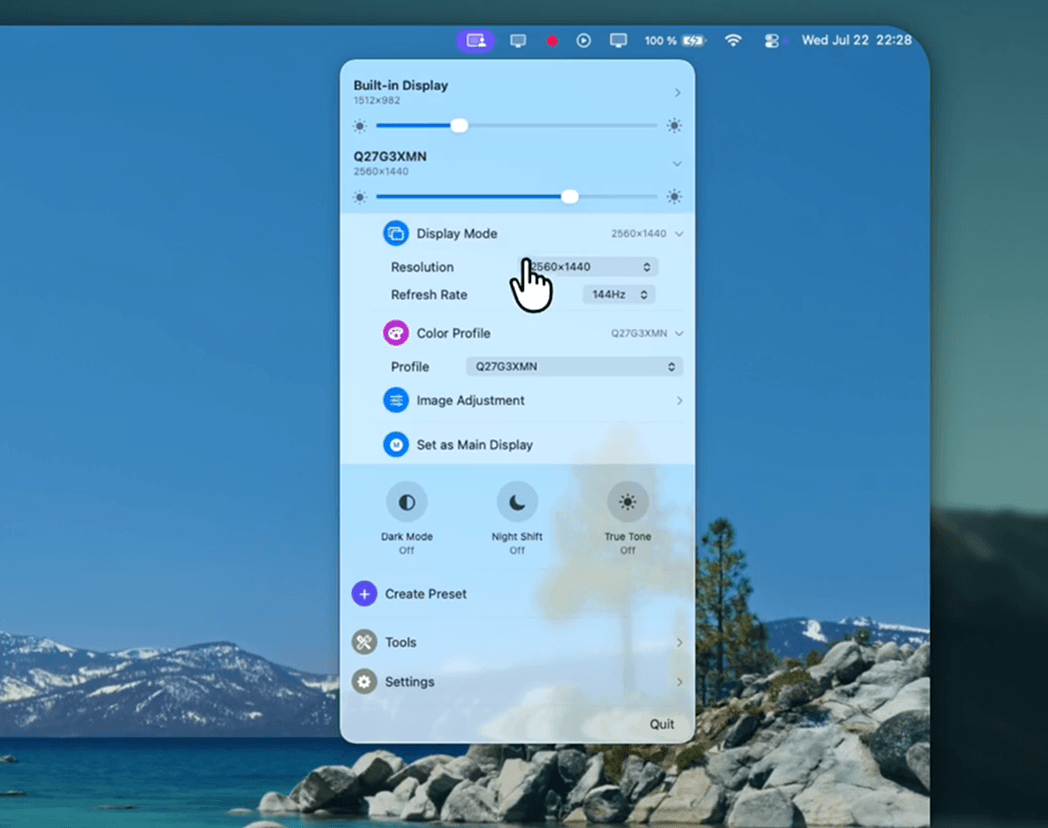
A free, open-source menubar app for managing external displays. HiDPI resolutions, brightness, arrangement, color, and presets — all in one menu bar panel.
BetterStage
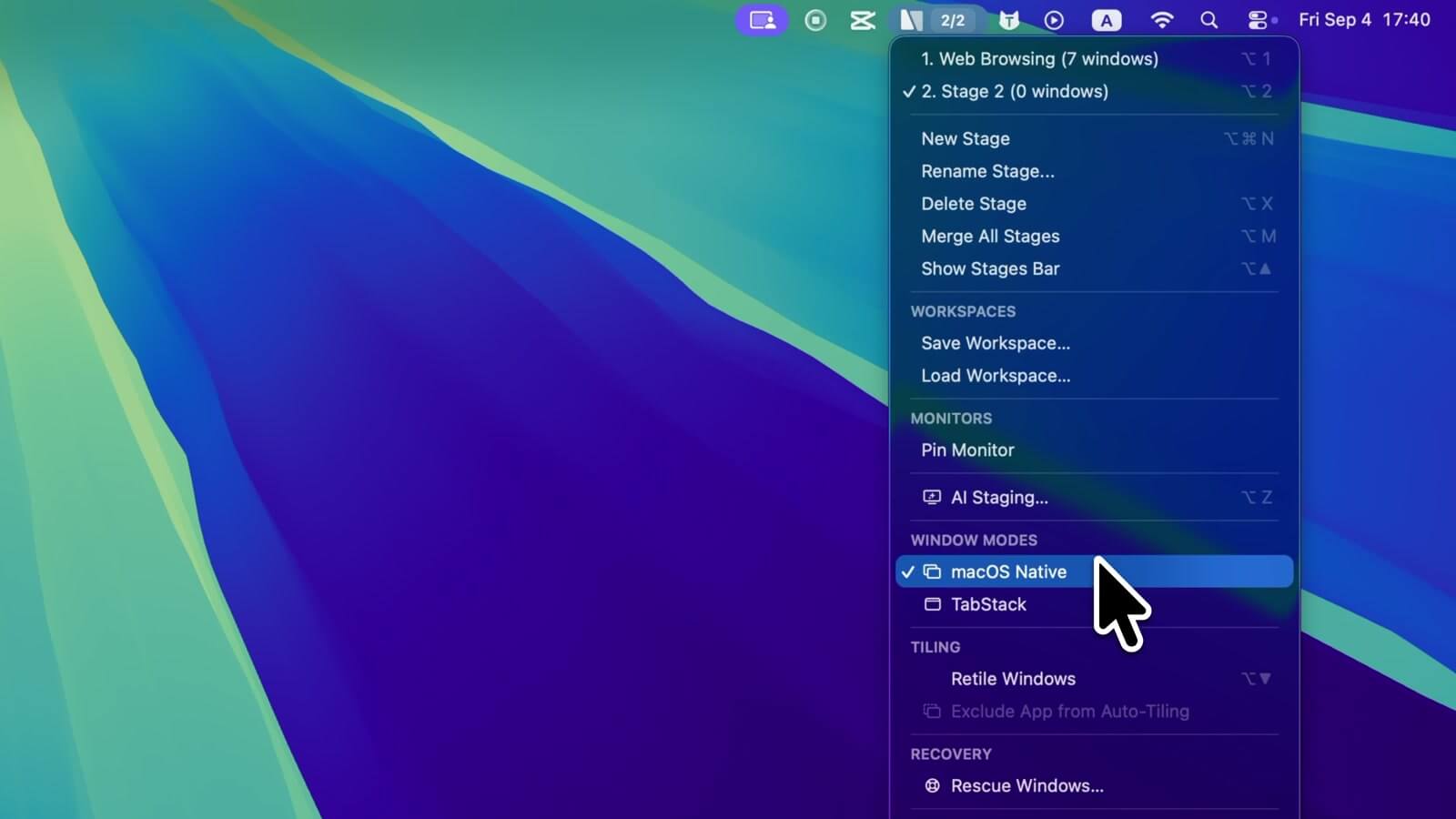
Window & workspace manager that groups apps into named stages with per-monitor layouts
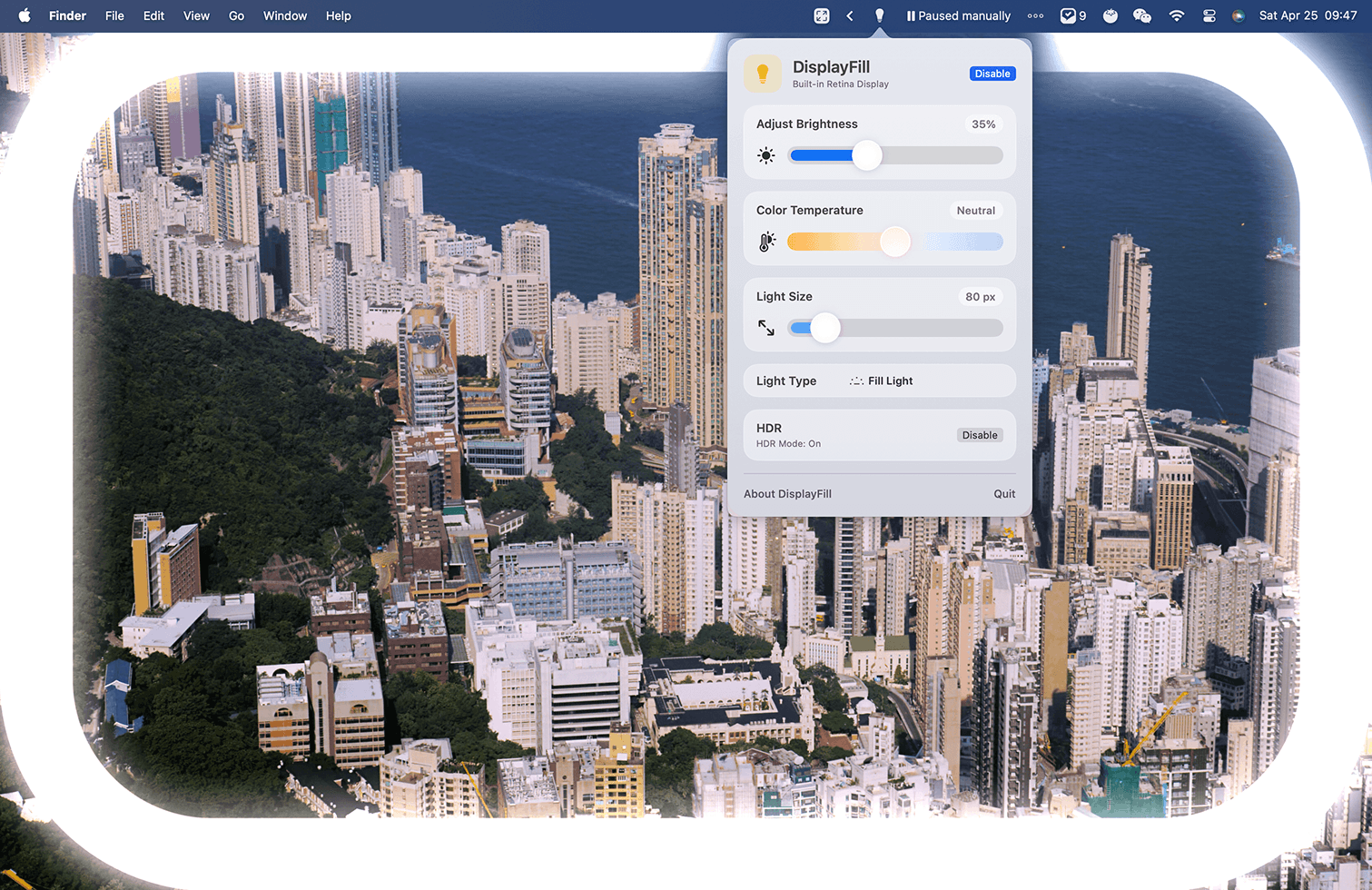
DisplayFill
Transform your display edges into a clean, adjustable fill light for video calls, streaming, and low-light work
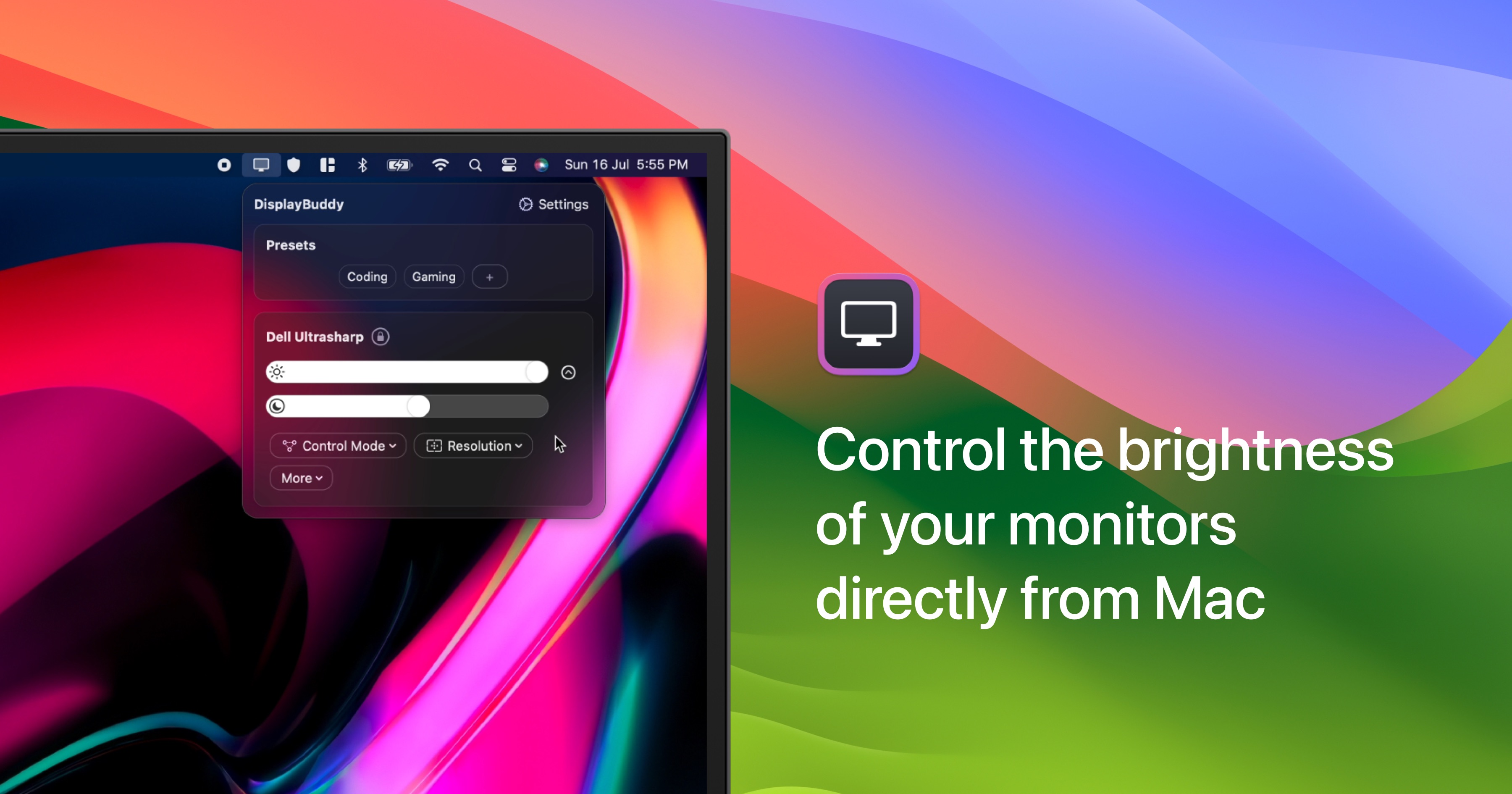
DisplayBuddy
Control external monitor brightness, contrast, and volume from your Mac menu bar
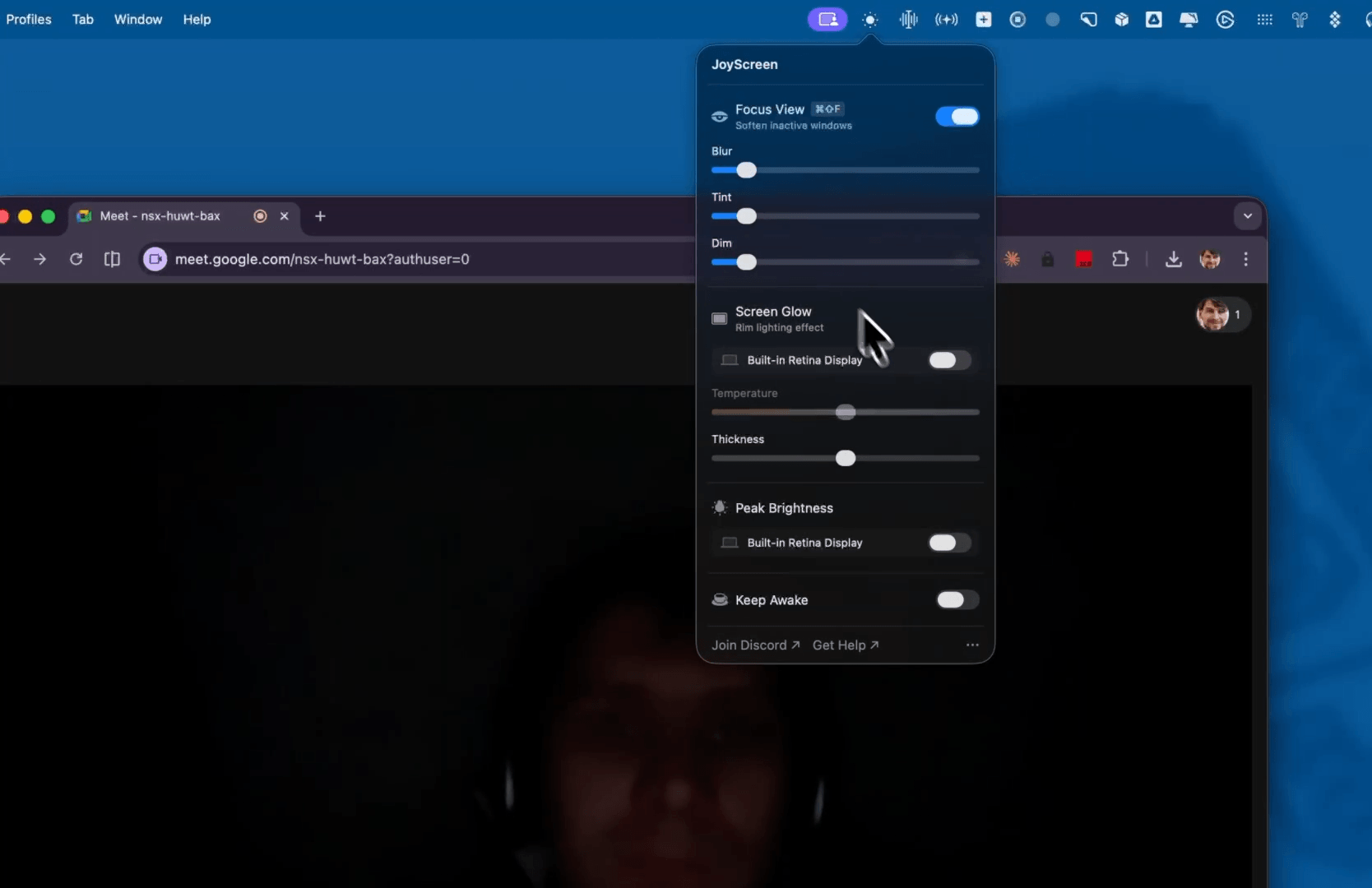
JoyScreen
Your Mac screen, supercharged. Blur distractions, boost brightness beyond 100%, add ambient glow for video calls, and keep your Mac awake — all from the menu bar.
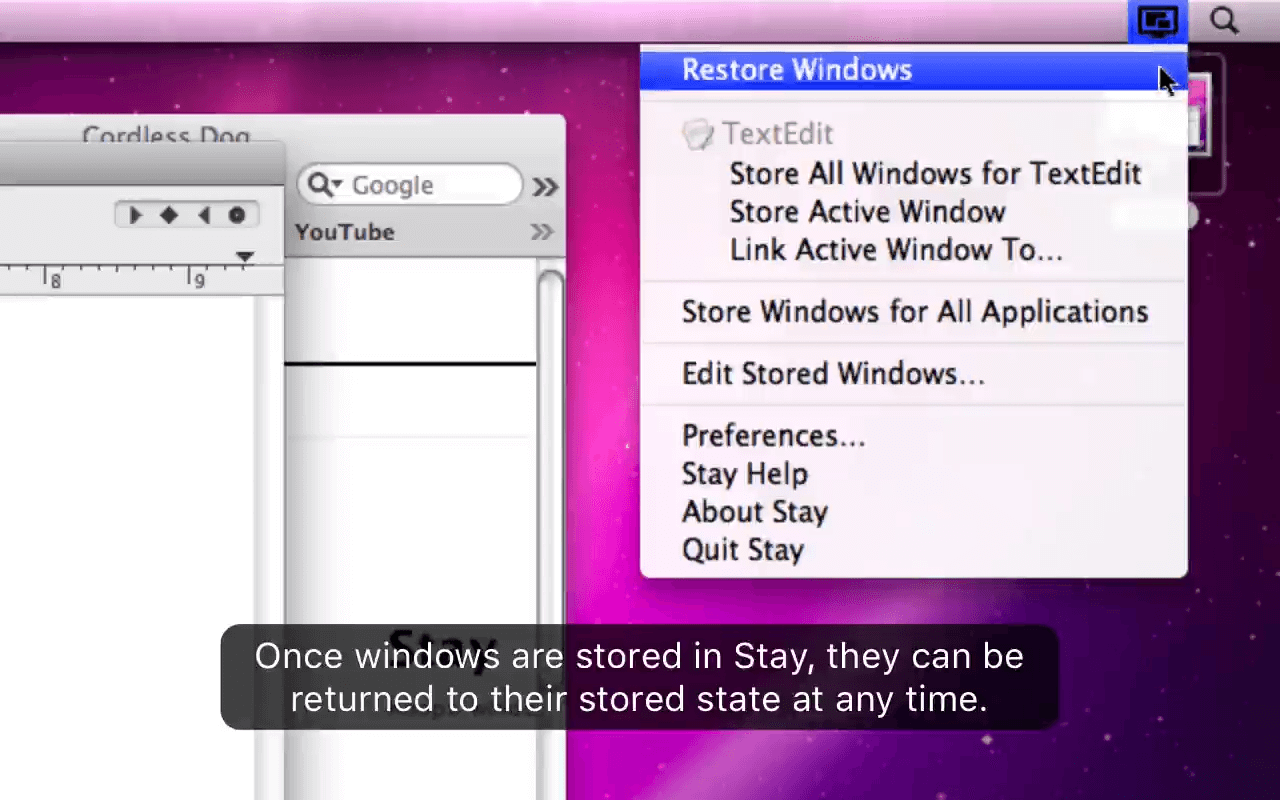
Stay
Keeps windows in their place.
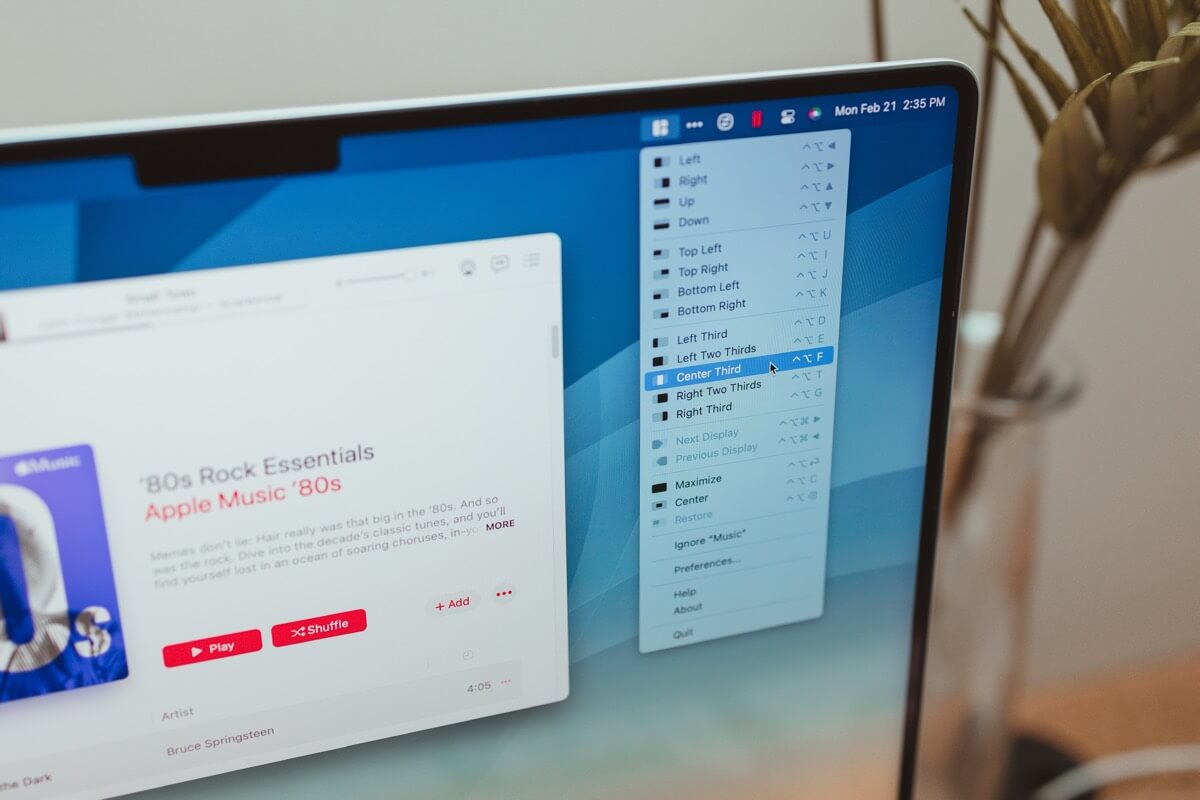
Magnet
Magnet keeps your workspace organized
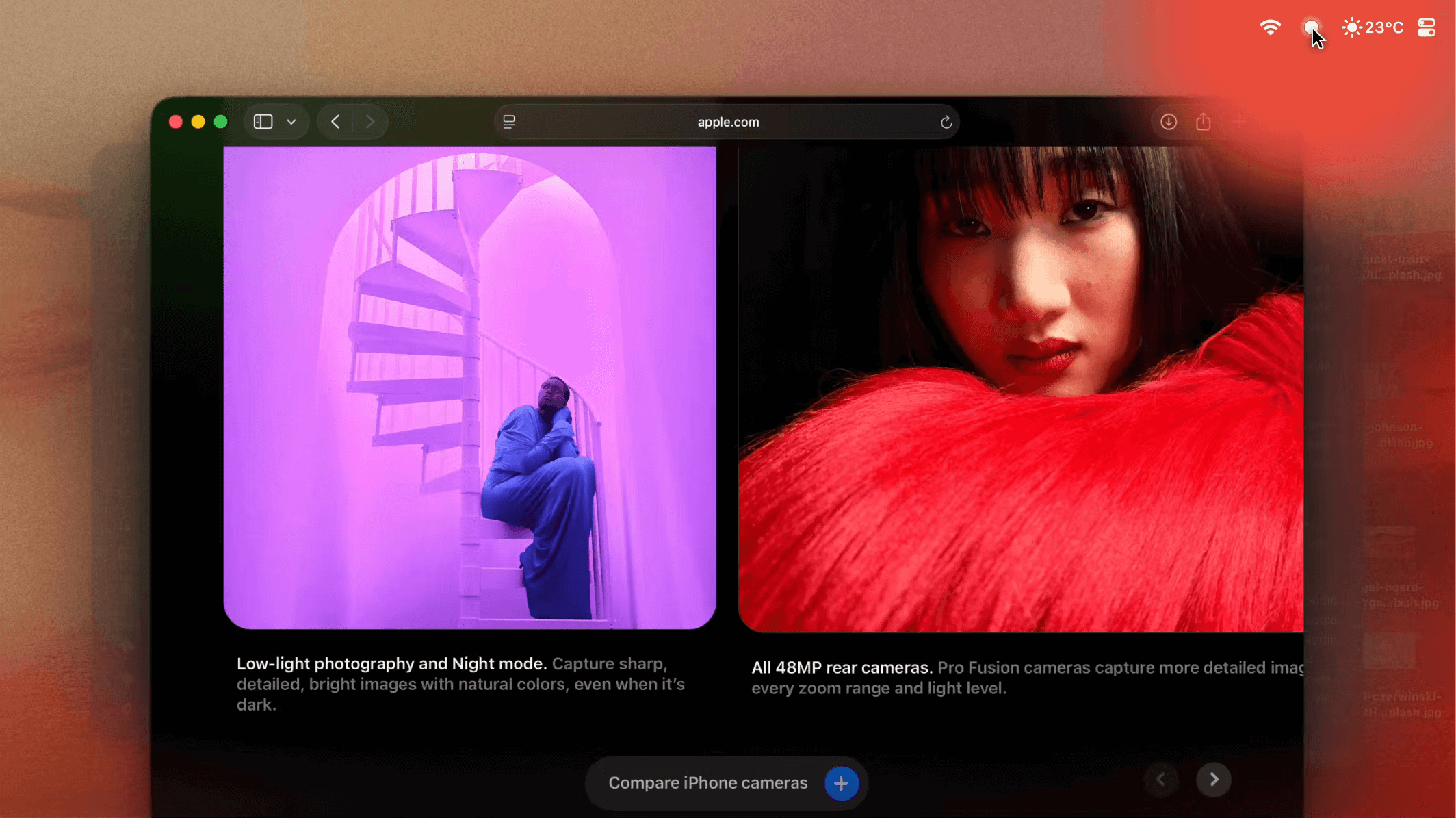
Monocle
Noise-cancelling for your screen
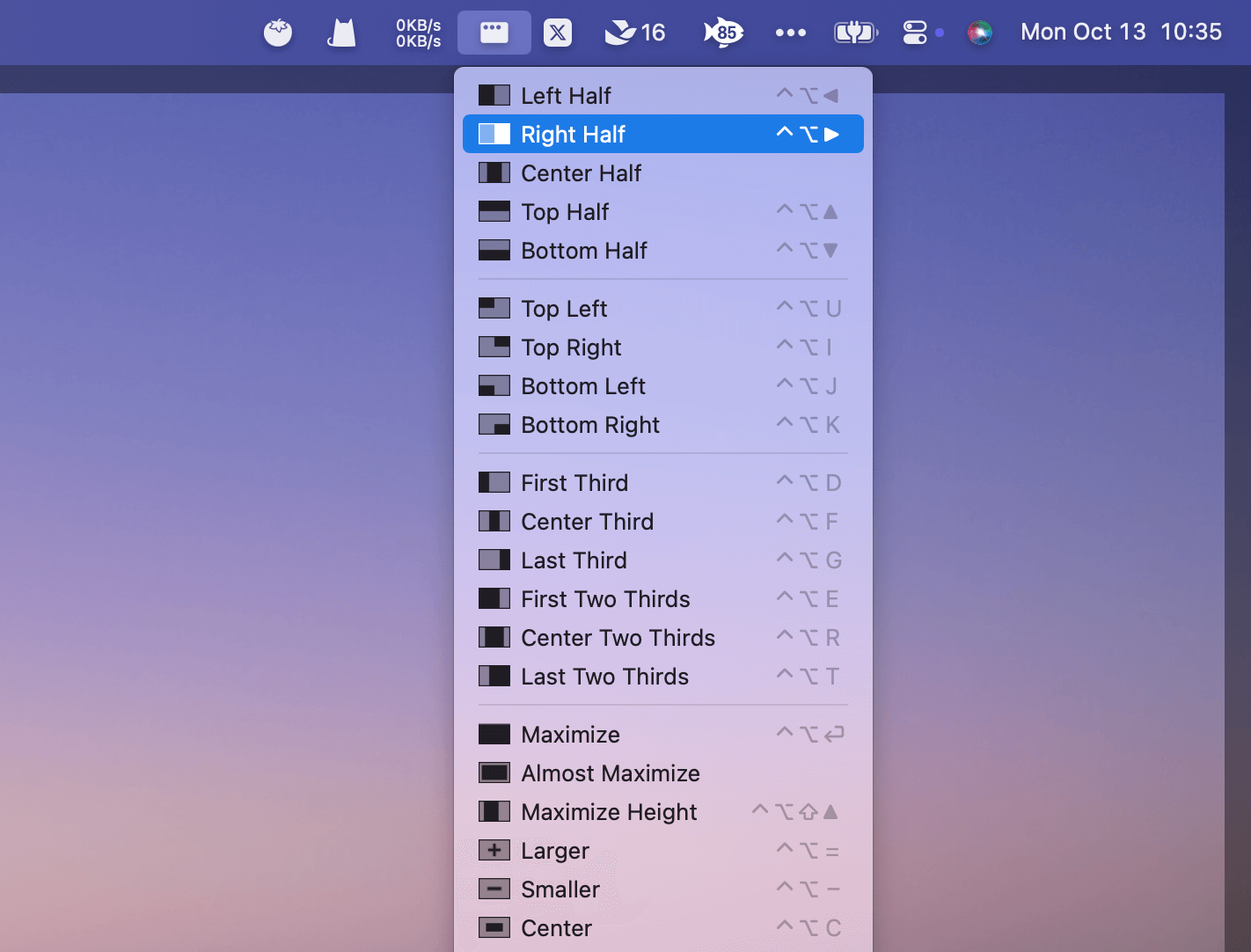
Rectangle
Move and resize windows in macOS using keyboard shortcuts or snap areas